Equipment & Warehouses
Equipment
Add products to the equipment catalogue and manage intakes and issues in club warehouses.
Adding a New Product
To add a new product to the catalogue, select Club → Equipment & Products → Add New from the left menu.
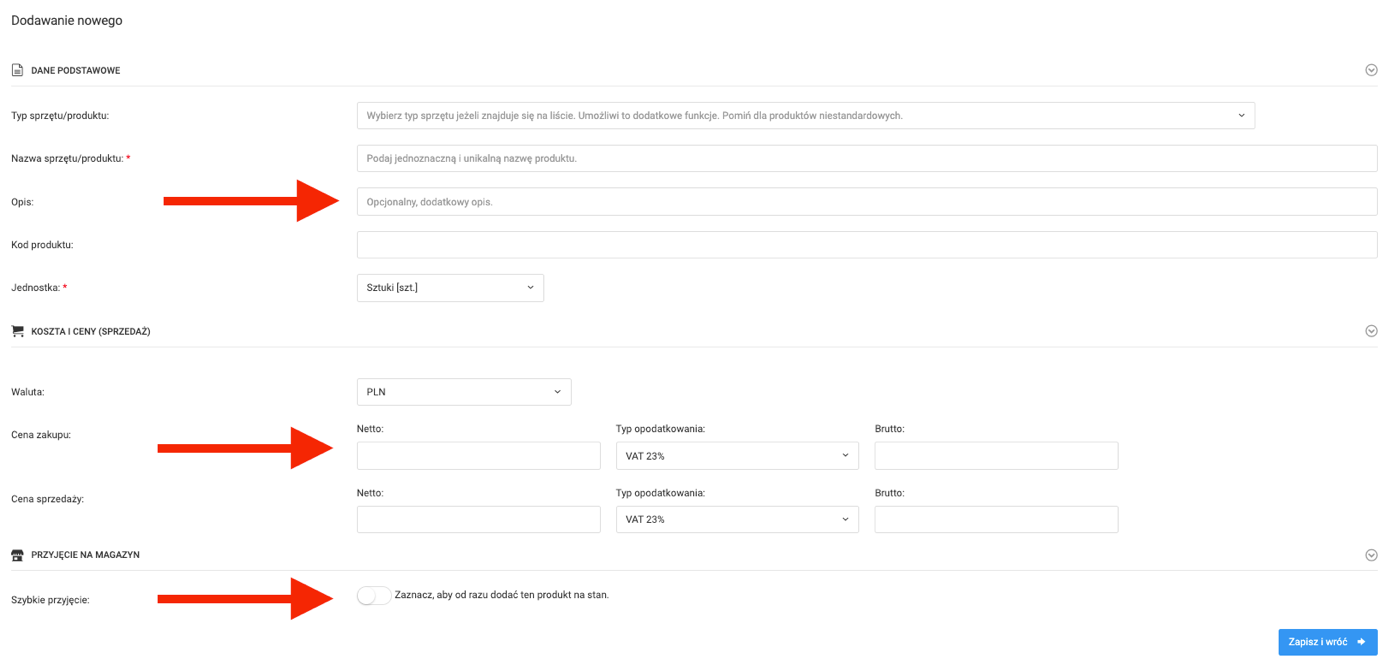
The product form contains:
- Basic details — type, name, description, code, and unit of measure,
- Costs, taxes, and price,
- Quick intake — option to immediately intake the product into a selected warehouse.
Equipment Intake
To intake equipment into a warehouse, go to the warehouse view and click the green "Intake" button in the top right corner.

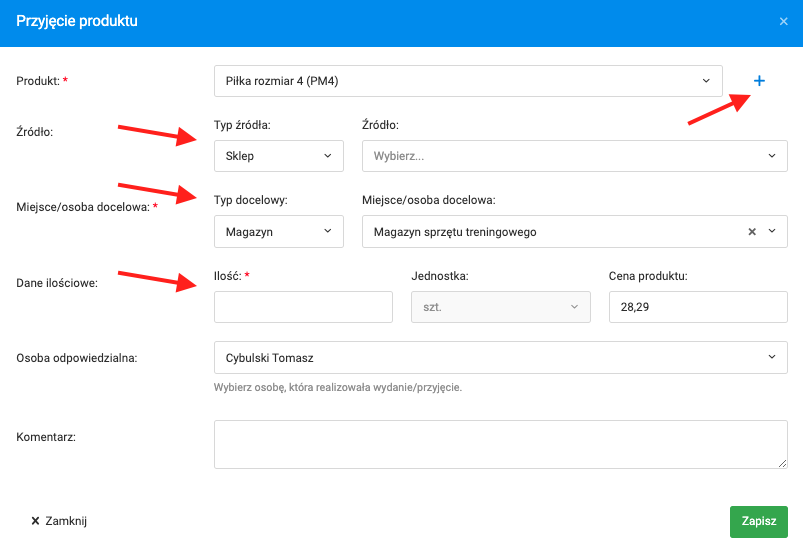
In the intake window, fill in the following fields:
- Product — if the product does not exist in the catalogue, add it by clicking the plus icon in the top right corner of the window,
- Source — shop, sponsor, another warehouse, etc.,
- Target warehouse — by default the warehouse from which the intake was initiated,
- Quantity and price,
- Responsible person — by default the person entering the intake,
- Comment — optional.
Once all fields are filled in, click the green "Save" button in the bottom right corner.
Equipment Issue
To issue a product from a warehouse, click the orange "Issue" button in the top right corner — available from both the warehouse view and the specific product page.
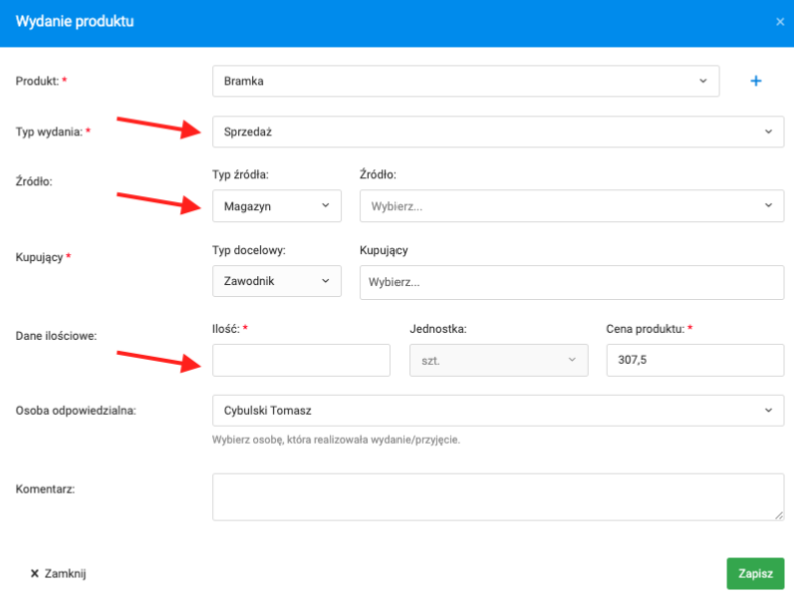
In the issue form, fill in:
- Product,
- Issue type:
- Inter-warehouse transfer,
- Sale,
- Loan,
- Disposal.
- Source and destination — the destination can be a buyer, borrower, player, coach, parent, etc.,
- Quantity, price, and responsible person.
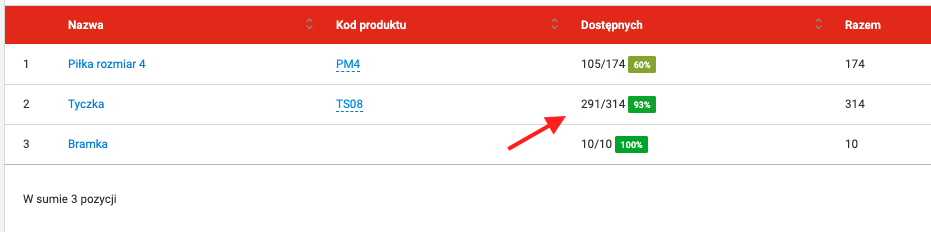
The issue type affects the stock level. For a loan, the current stock decreases but the total inventory still includes loaned products. For sale, transfer, and disposal, both the stock level and the total product quantity change.