

Payment Reminders
Two Ways to Send Reminders
The system offers two ways to send reminders about unpaid contributions to guardians:
- Manual sending — available by default in the manual contributions module,
- Bulk sending — requires access to the bulk messaging module (SMS and email).
Manual Reminder
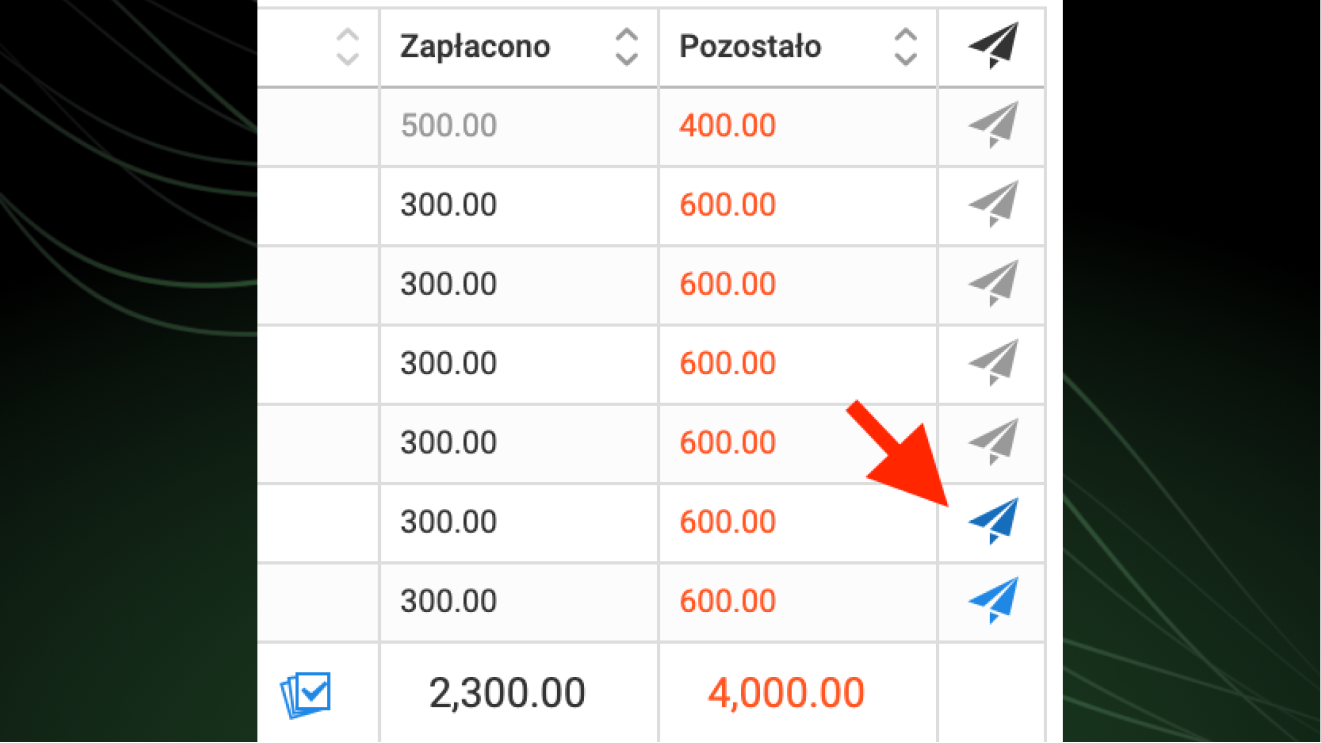
To send a manual reminder, click the blue paper plane icon in the last column of the table next to the relevant guardian.
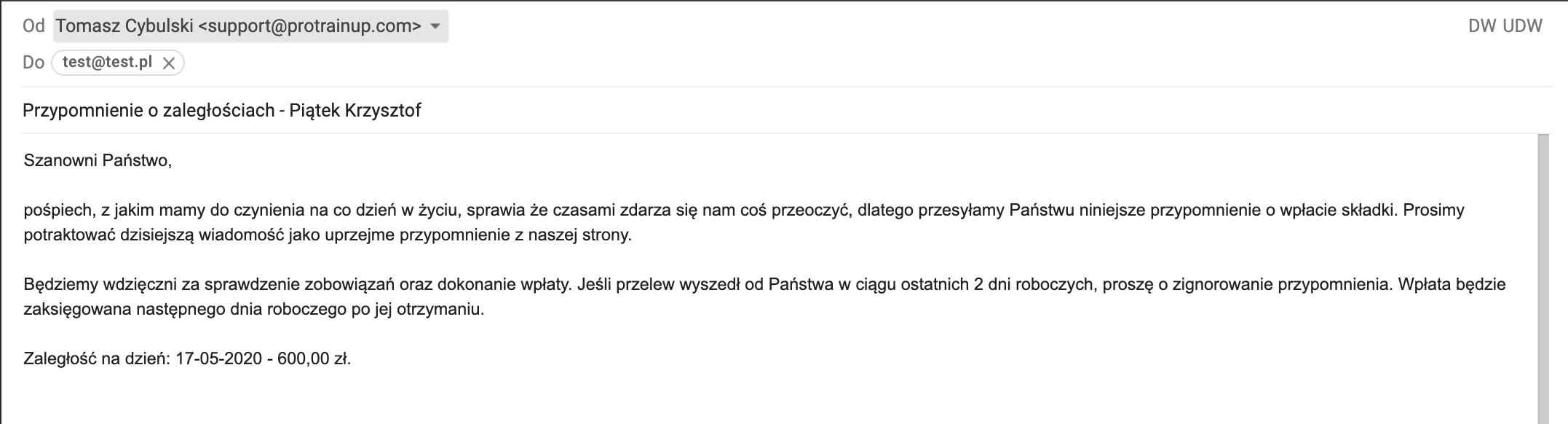
After clicking, your email client (e.g. Outlook, Gmail, or Thunderbird) will open with a predefined message.
Bulk Reminders
To use the bulk messaging module, go to the contribution list, open a specific contribution, and click the blue "Send payment reminders" button in the bottom left corner of the screen.
Selecting Recipients
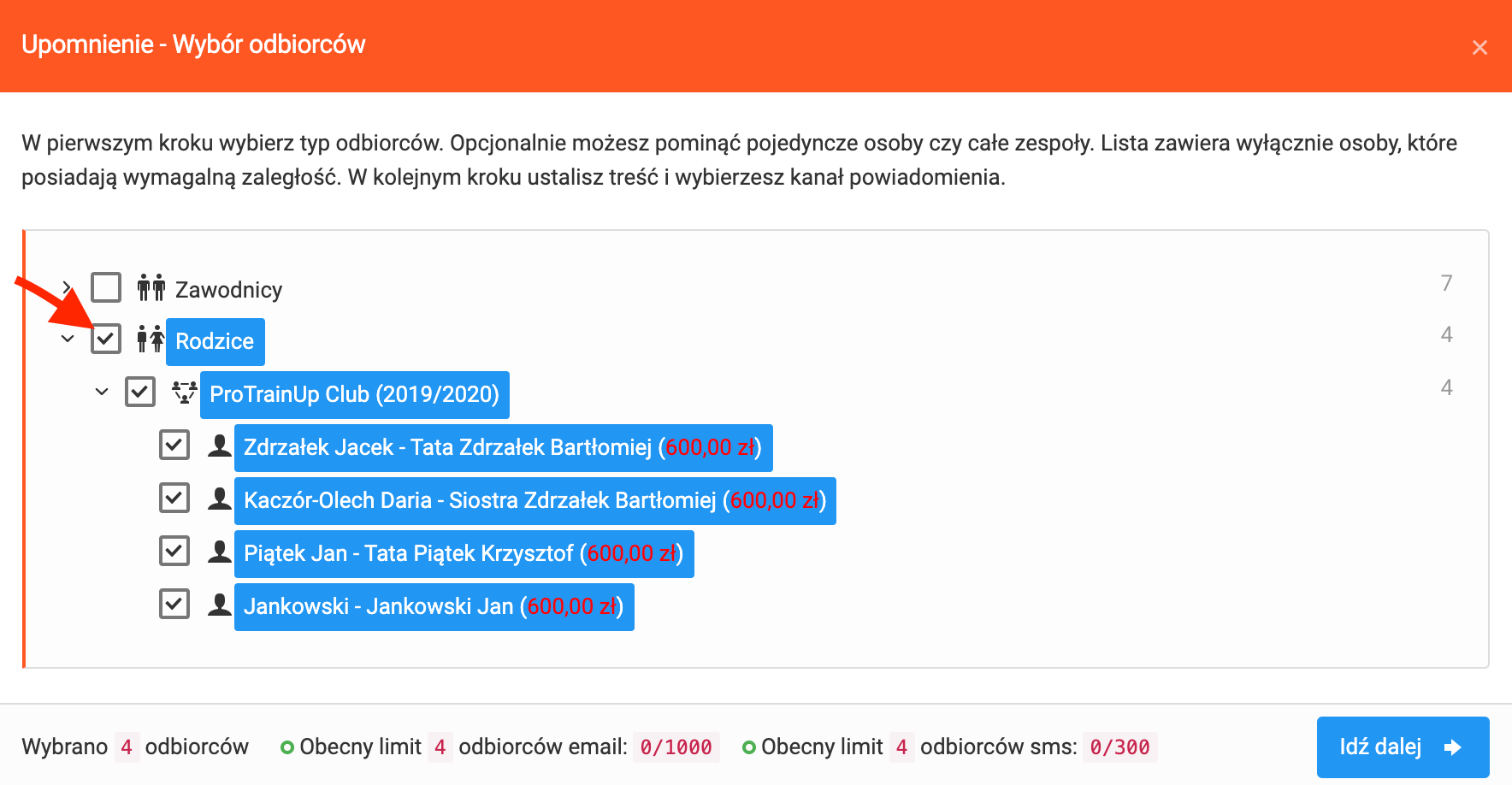
In the recipient selection window, mark the people to whom the reminder should be sent. By default, the system selects all guardians with any current outstanding balance for the given contribution — the final decision is yours.
Message Configuration
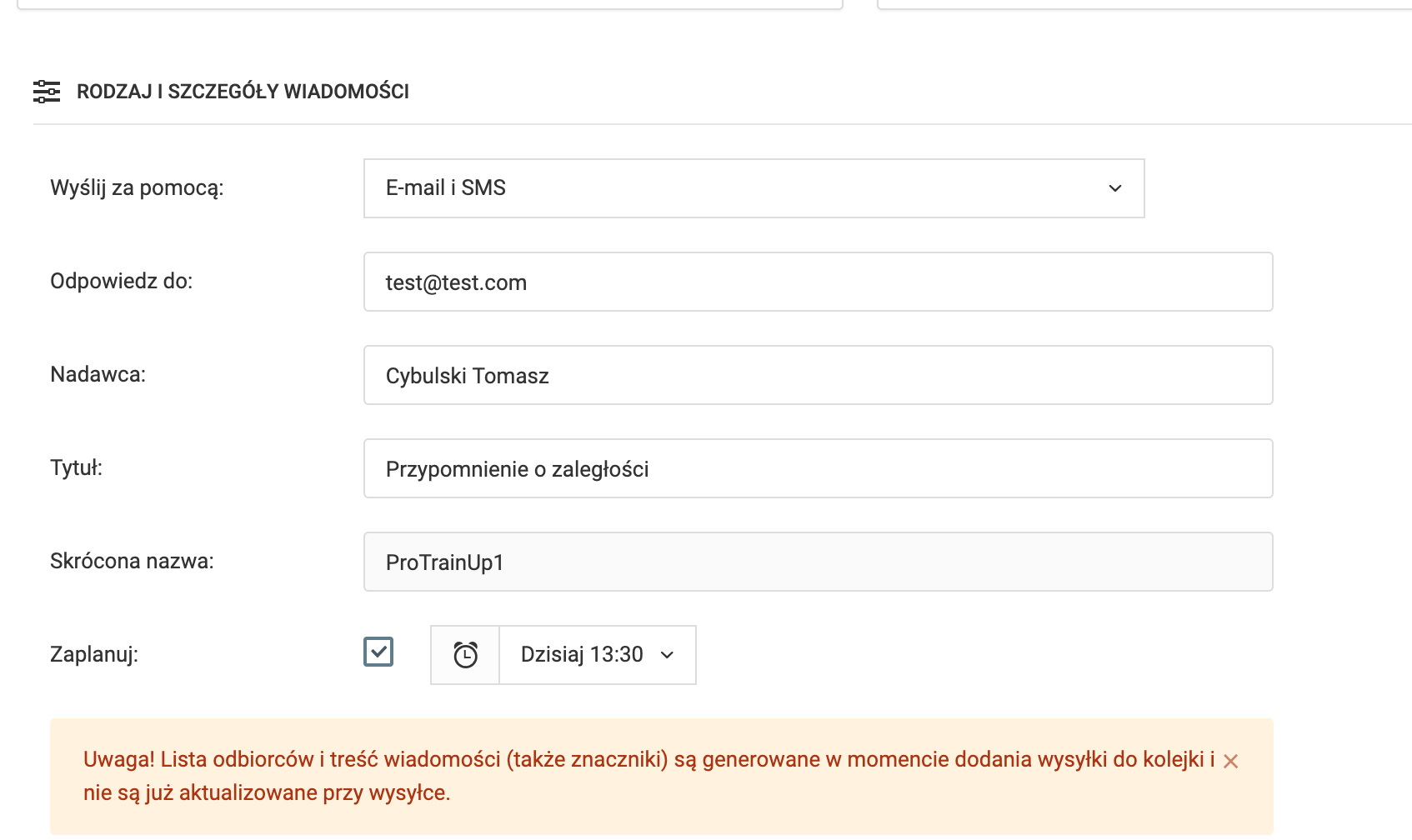
In the next step, define the notification sending method:
- SMS
- SMS + E-mail
You can also configure:
- Reply address — the address to which replies should be directed,
- Sender — the name visible as the message sender,
- Message subject,
- Shortened SMS name — ProTrainUp by default (contact us to change it),
- Scheduled sending — option to schedule sending up to 72 hours in advance.
Message Content
The reminder content is generated dynamically for each recipient — automatically including the outstanding balance as of the planned sending date.
On the left side of the form you will find dynamic tags (red text) that you can insert into the message content. The system will automatically fill them in with recipient data, such as their first and last name.
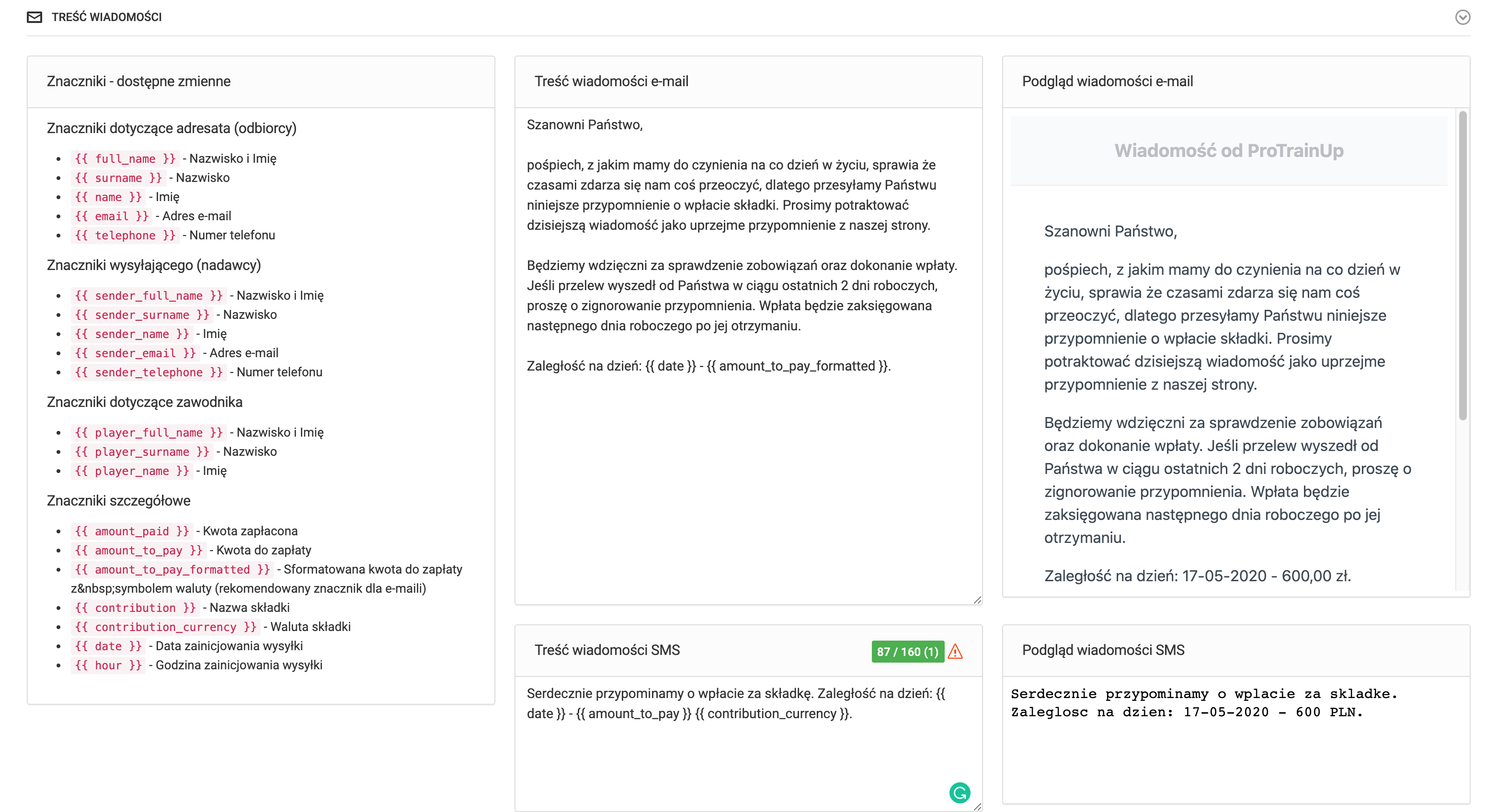
After finalizing the message content, click the send button.
Payment Automation
Import bank statements for automatic payment recording and integrate with Przelewy24 to enable contributions to be paid directly in the system.
Creating a Marketing Campaign
Create email and SMS campaigns with precise audience targeting — players, parents, club staff, or selected individuals.