

Recruitment & Surveys
Managing Respondents
View and export survey responses, and convert respondents into system users — players and parents.
Response List
To access the response list, select the "Response list" option from the menu next to the given survey. Each answer to a given question is displayed in a separate column, providing a clear overview.
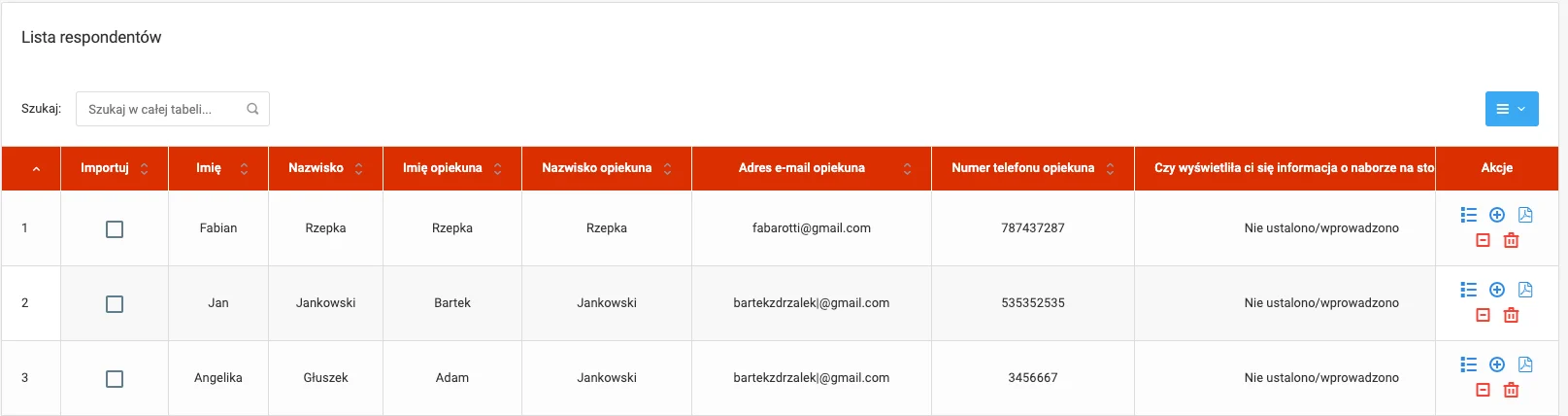
In the last column of the table you will find options for each response:
- Delete response,
- Reject response,
- Preview respondent data — as a PDF or separate subpage.
On the right side above the table you will find:
- Column visibility management — eye icon,
- Table export — to XLS, CSV, or PDF.
Converting Respondents into Users
If the form was a recruitment survey, you can create player and parent accounts directly from the respondent data and assign them to a selected team.
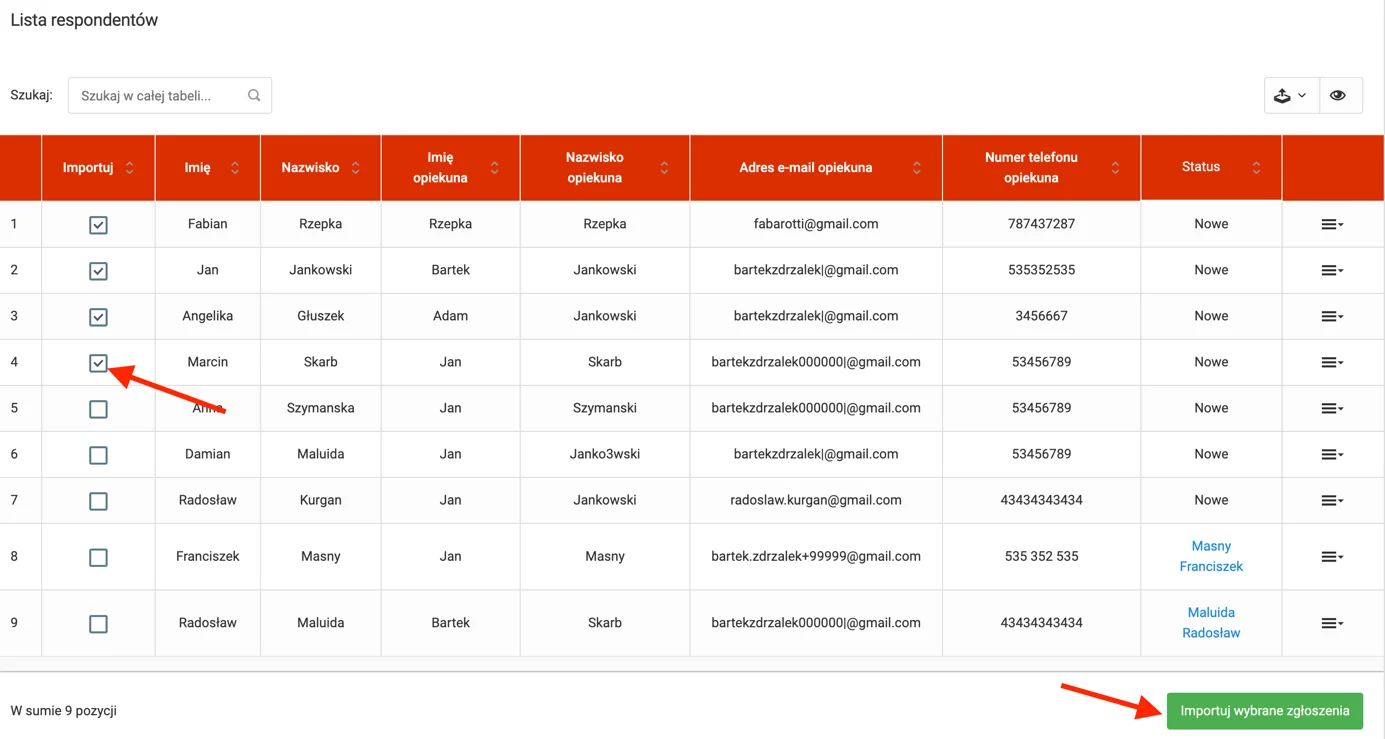
To do so:
- Select respondents from the left side of the table that you want to import,
- Choose the team and season to which they should be assigned,
- Match columns — map the column content on the left to the appropriate fields on the right,
- Generate logins and passwords for the newly created users (parent and player).
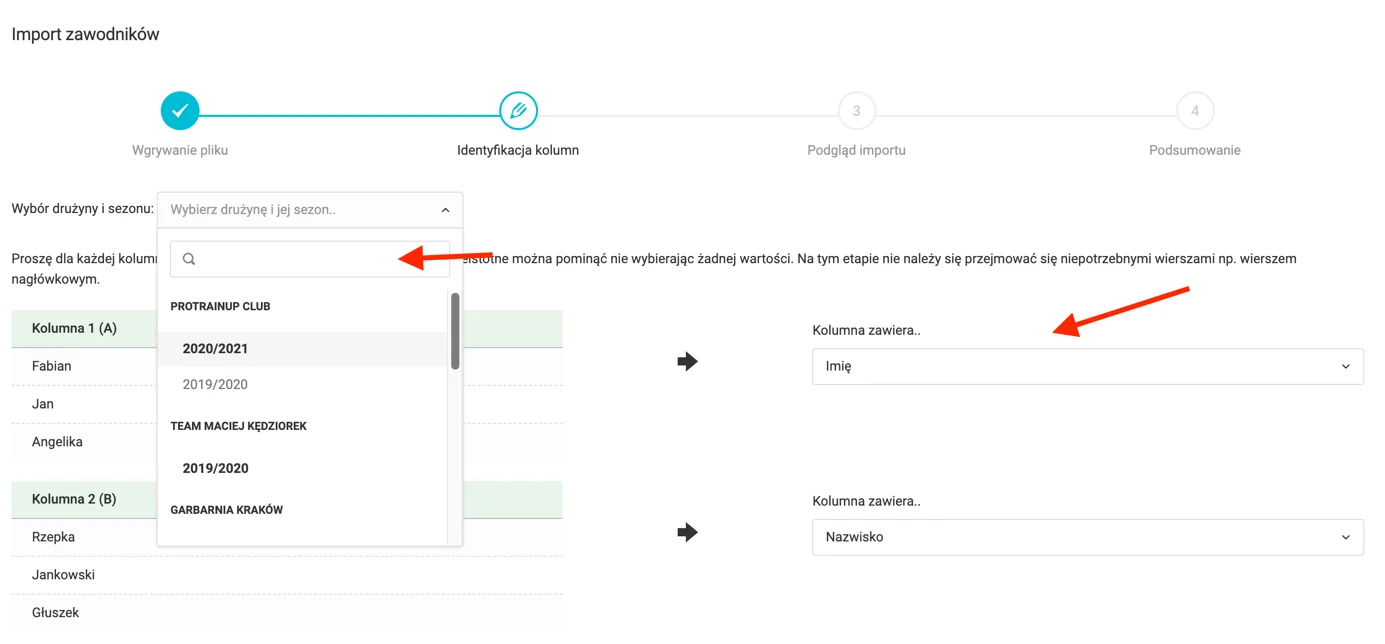
After saving, the selected users will be added to the player and parent list of the chosen team.