Facilities & Reservations
Reservations
Manage sub-facility reservations — schedule, reservation types, conflict blocking, and adding custom reservations.
Reservation Schedule
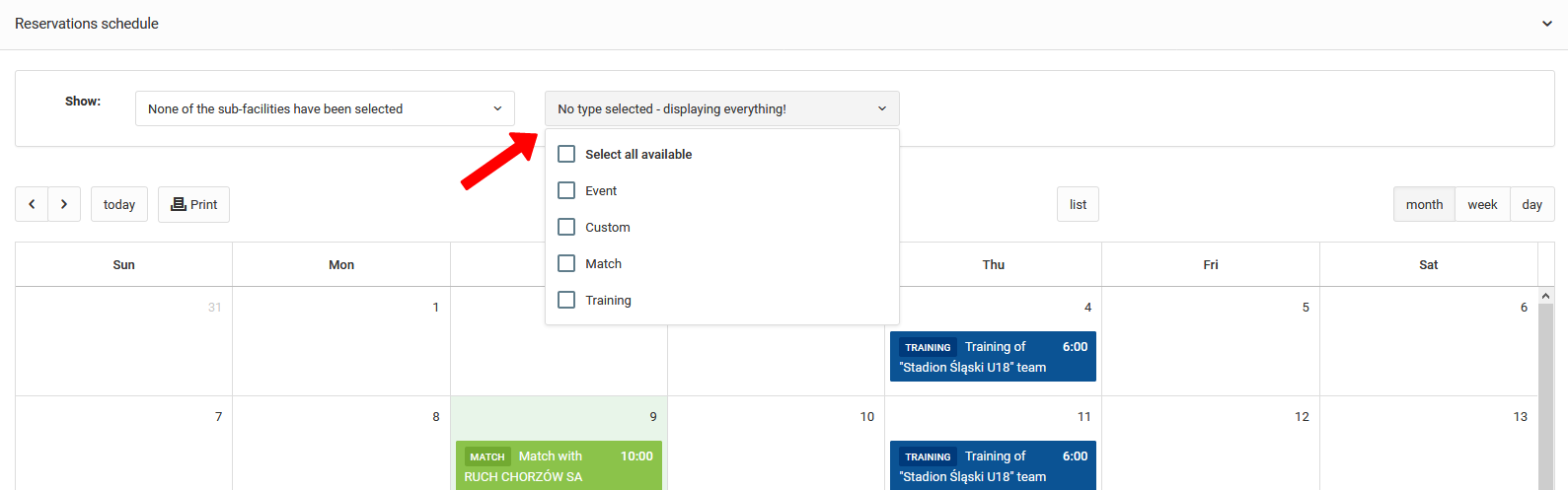
In the preview of each sub-facility, at the bottom of the page, you will find the reservation schedule. Above the calendar you can filter by:
- Specific location,
- Event type.
Reservation Types
The system distinguishes two types of reservations:
- Standard — training sessions, matches, and events added classically from the coach or club calendar,
- Custom — added from the facilities and reservations module, not directly linked to any event — used for planning facility occupancy.
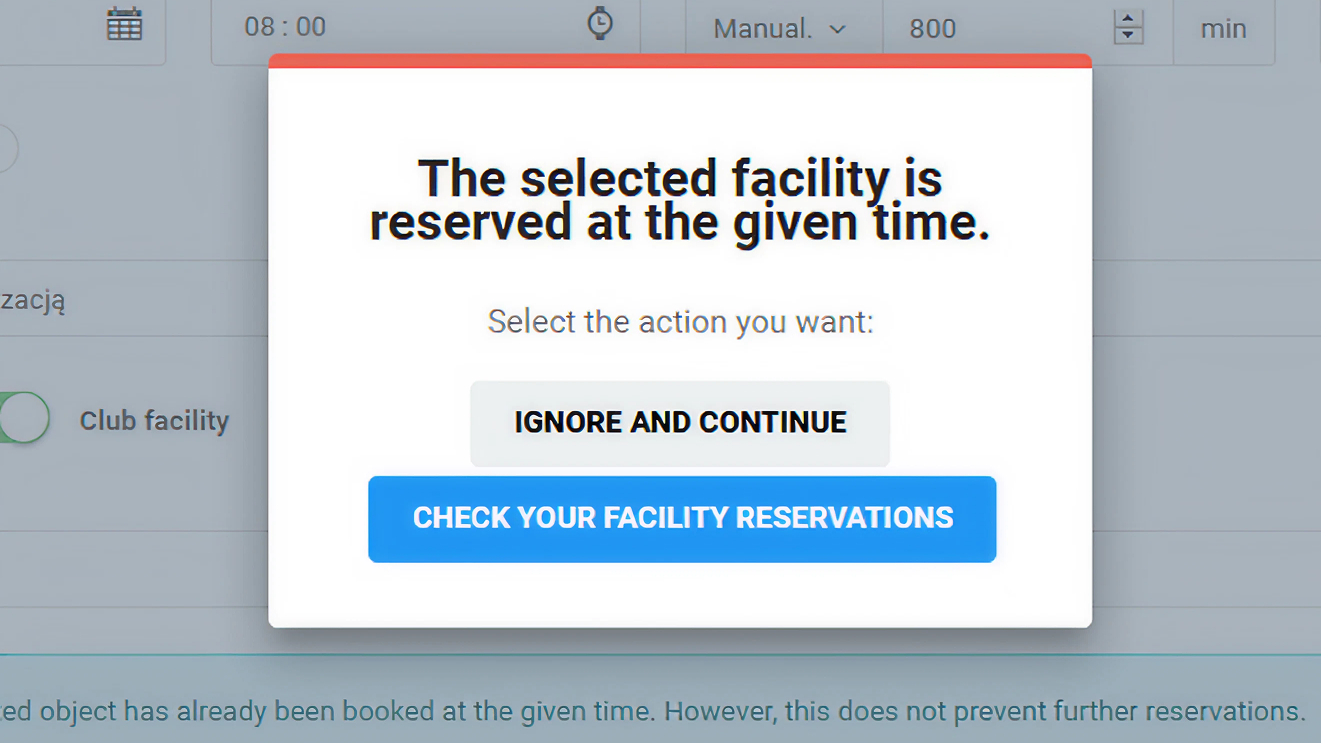
Adding a training session or match to a given facility automatically creates a reservation, which does not block the ability to add another event at the same place and time — the system will only notify you of the conflict.
When a scheduling conflict occurs, the system will display a window with two options:
- Ignore conflict — create the event despite the conflict,
- Check schedule — view the facility reservation calendar and arrange changes.
Blocking Parallel Reservations
To completely block the ability to add two events at the same place and time, you have two options:
- Edit an existing event — from the reservation schedule, enable the blocking option,
- Custom reservation — when creating it, activate the option to block parallel events.
Adding a Reservation
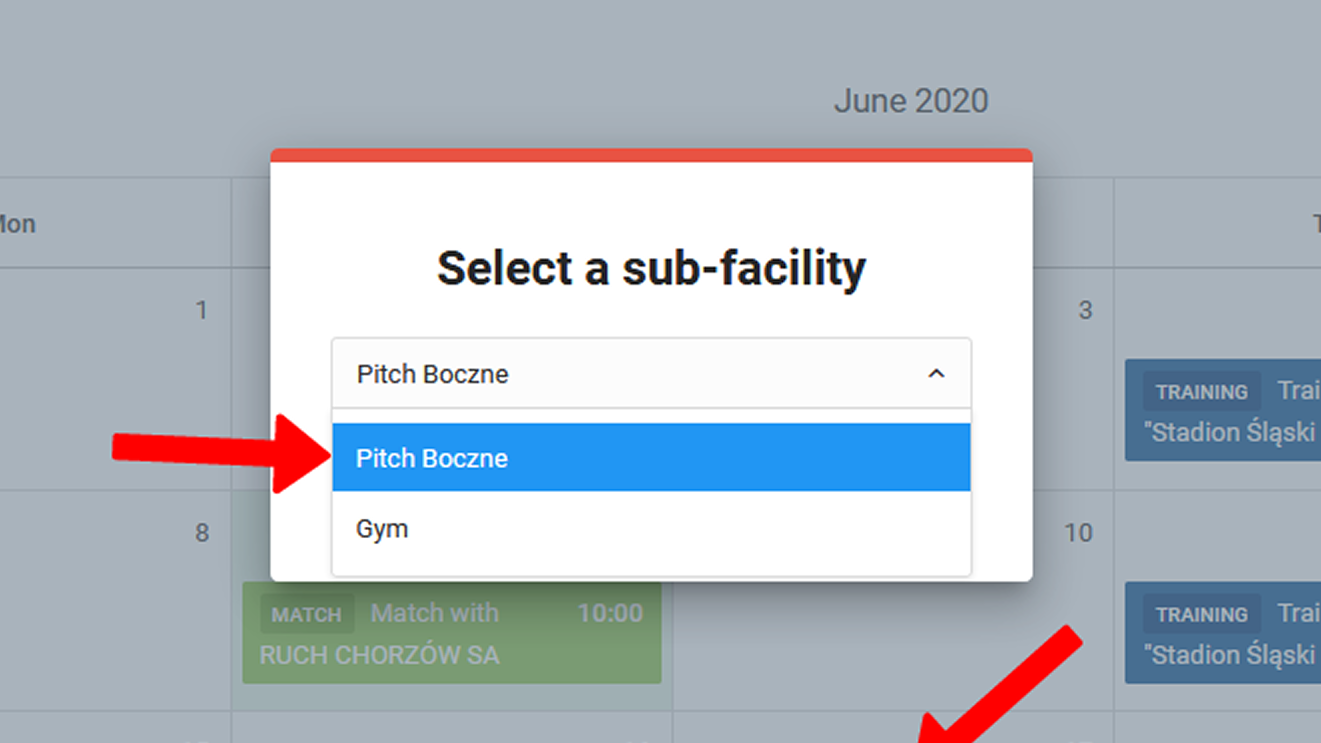
To add a custom reservation, select Club → Facilities & Reservations → Reservation Overview from the left menu. Click on the selected day in the calendar and choose the sub-facility you want to reserve.
The custom reservation form contains the following fields:
- Reservation title,
- Sub-facility zone/part — to be reserved,
- All-day — option to mark as an all-day event,
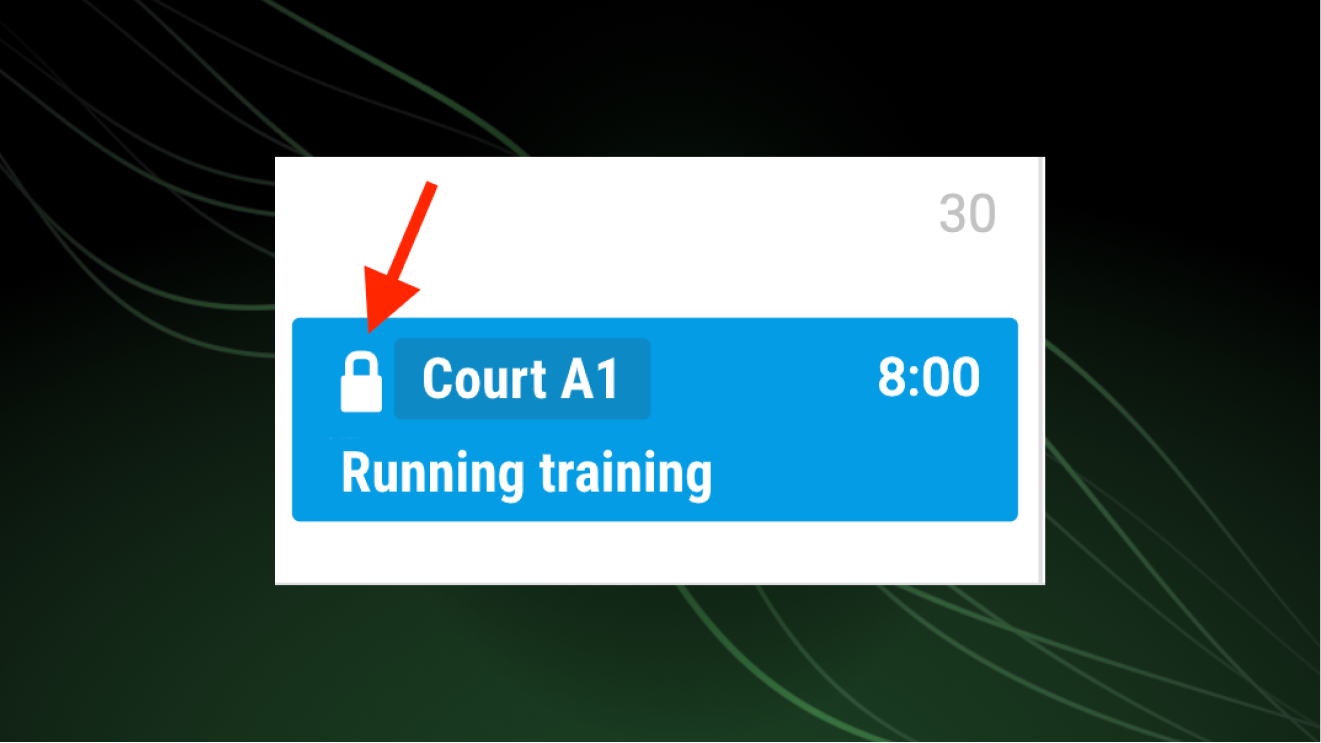
- Block parallel reservations — blocked reservations are marked with a padlock icon on the calendar.
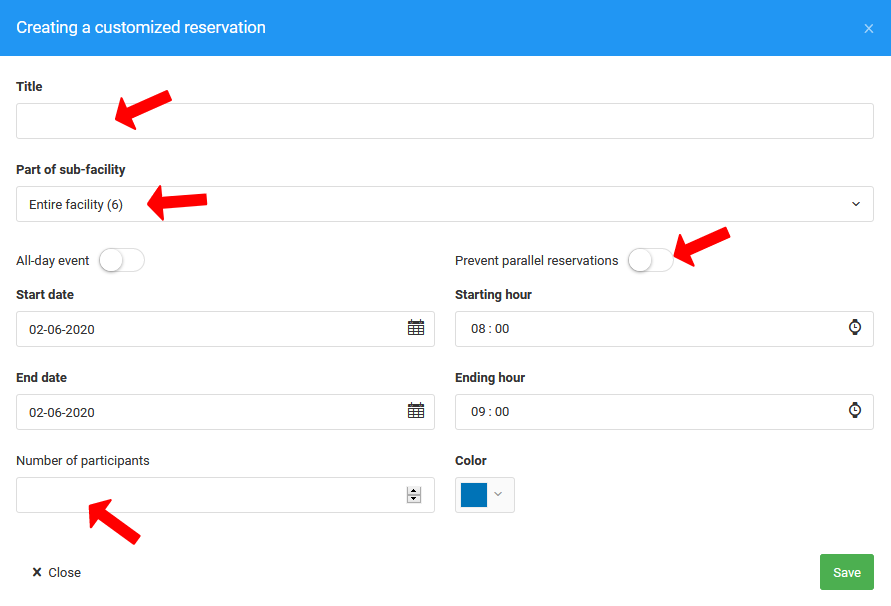
In the next steps, fill in:
- Date and time,
- Number of participants,
- Reservation color on the calendar.