Staff Management
Permissions & Access
Grant module permissions and share access credentials with club employees.
Granting Employee Permissions
To access an employee's permissions, select Club → Employees → Employee List from the left menu and click the "Permissions" option in the last column next to the given employee.
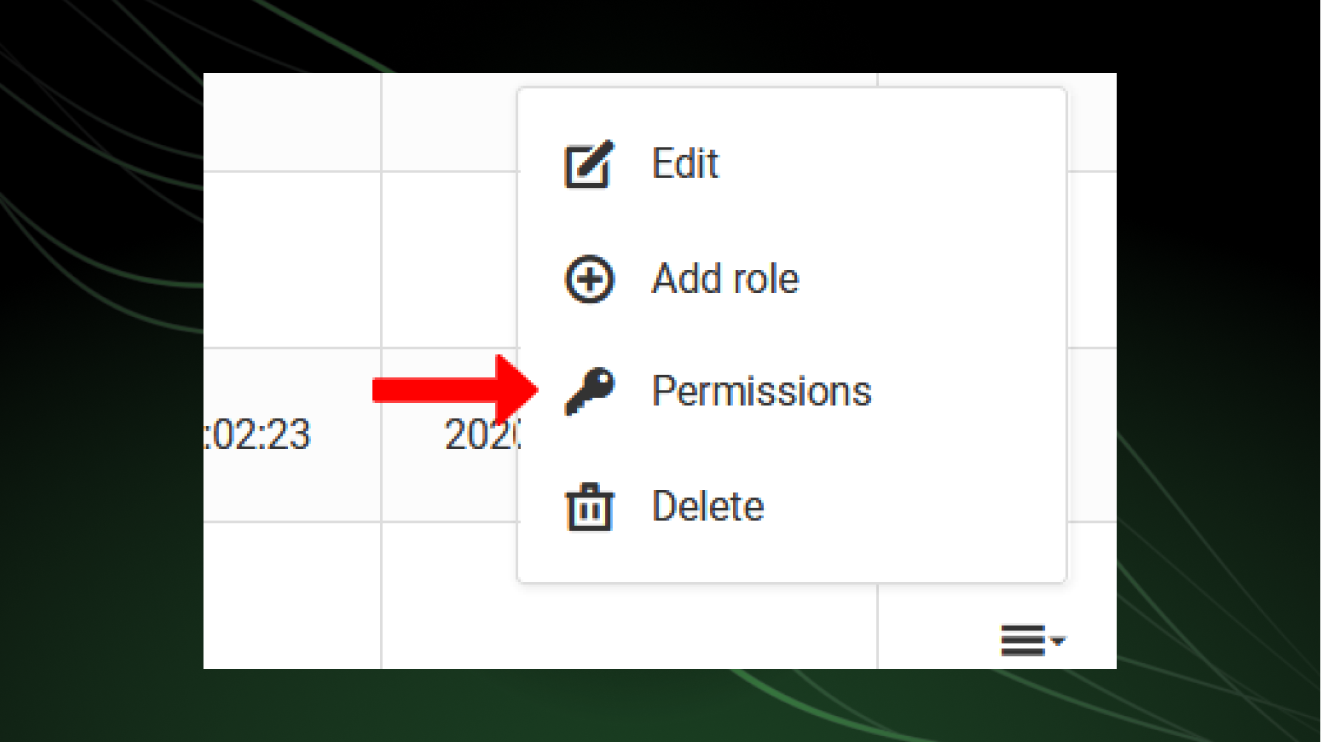
From the same place you can remove an employee by selecting the "Delete" option from the menu.
After clicking, you will be taken to a view of all system modules. By checking the checkboxes, you grant the employee access to individual modules.
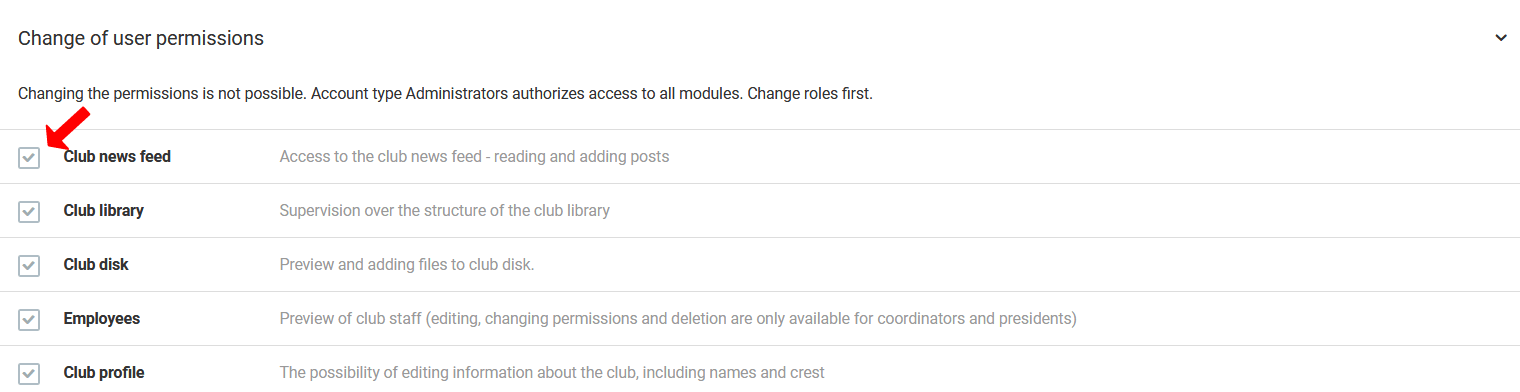
Some modules are critical to the functioning of the system. Think carefully about who you grant access to — deleting certain elements is irreversible.
Sharing Access Credentials
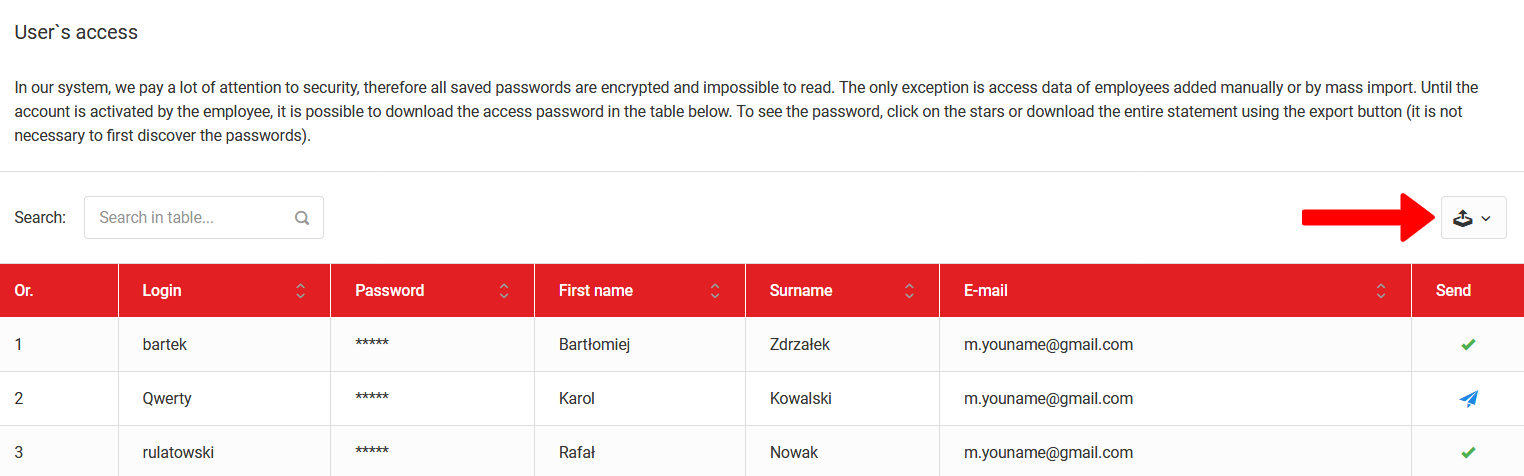
After creating employee accounts, their logins and passwords can be found in the Club → Employees → Access Credentials tab. You can share the credentials in two ways:
- PDF file — click the export icon in the top right corner to download the data as a document,
- Email — click the blue icon in the last column of the table to send the access credentials directly to the employee.