

Staff Management
Roles
Predefined club employee roles with different access levels — from full administrative access to permissions dedicated to specific modules.
Employee Roles
The system includes several predefined roles for employees. Each role affects the level of access to tabs and modules in the system.
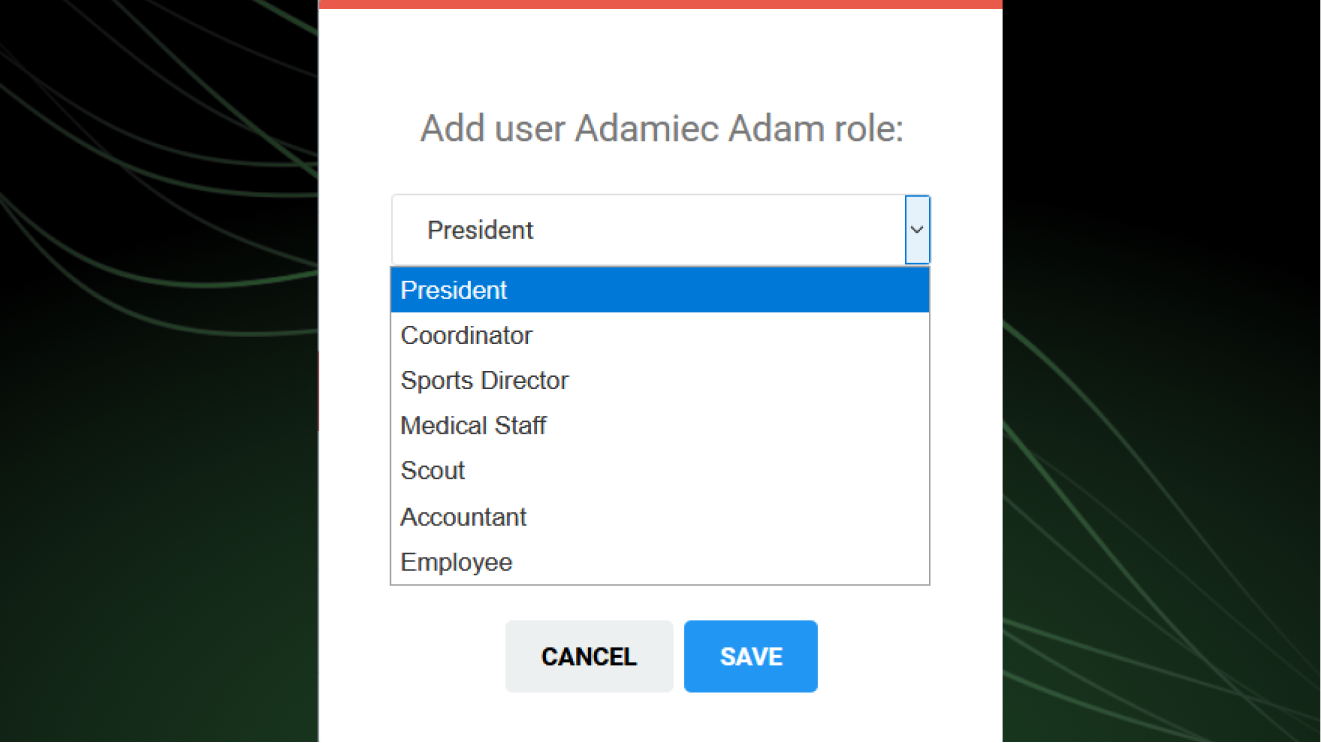
Available roles and their access levels:
| Role | Access Level |
|---|---|
| President | Full administrative access |
| Coordinator | Full administrative access |
| Administrator | Full administrative access |
| Coach | Access to selected diaries |
| Sports Director | Full access without the ability to edit system resources |
| Accountant | Access to contributions and finances |
| Medical Staff | Permissions to be defined |
| Scout | Permissions to be defined |
| Employee | Permissions to be defined |
As an administrator you can edit each employee's permissions individually.
Adding and Editing a Role
To add a role to an employee, click the "Add role" option in the menu next to the given employee (last column).
A user can hold several roles at the same time — the role with the highest permission level will always be active. For example: if an employee has the coordinator and accountant roles, the coordinator role will activate when accessing the contributions module, as it is higher in the hierarchy.
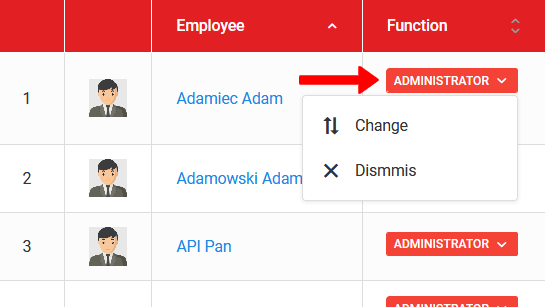
To remove or change a role, click the colored tile next to the employee's name. Two options will appear:
- Remove — revokes the given role from the employee,
- Change — allows you to edit the current role.