

Working with Projects and Drawings
Creating a New Project
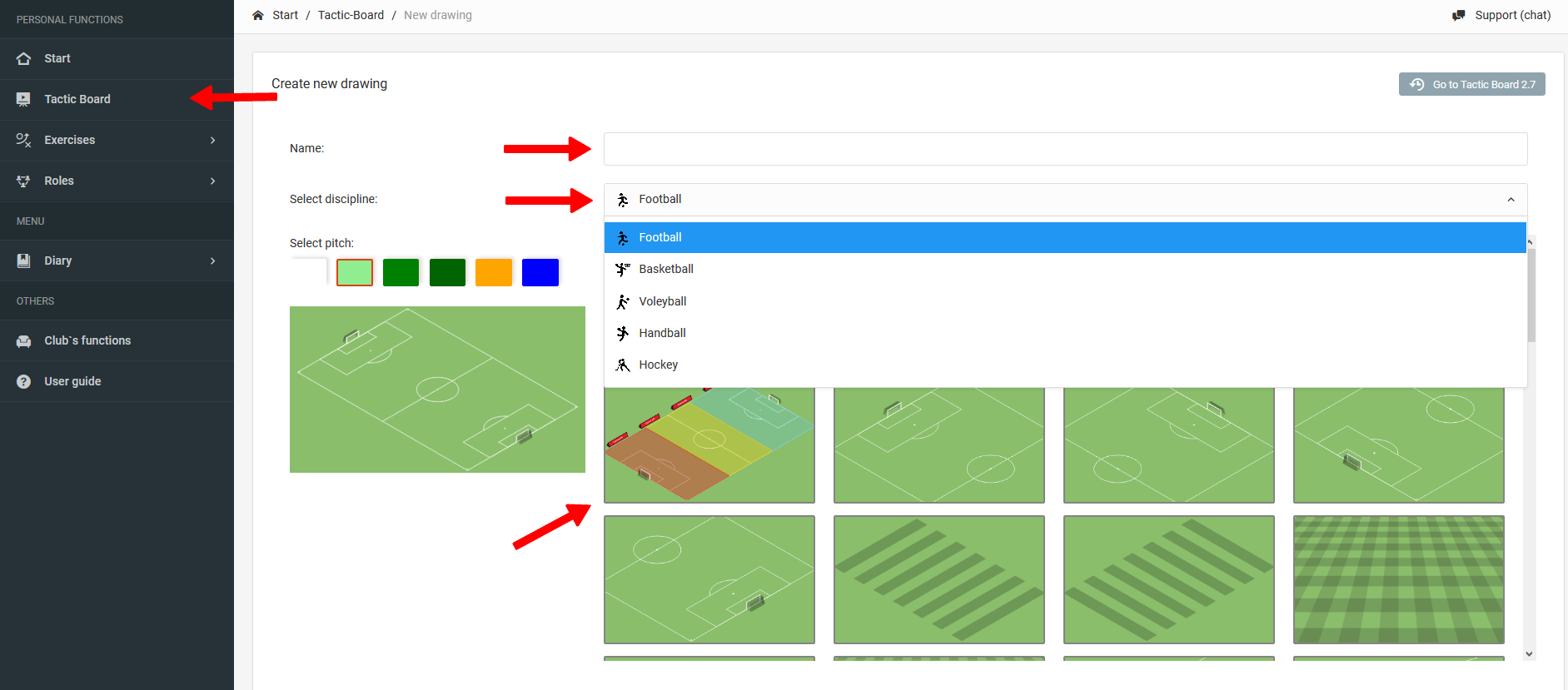
To create a new project, select the "Tactic Board" option from the left menu. In the next step, define the parameters of the new project:
- Name of the project,
- Field pattern,
- Sport discipline — determines the available field views.
Creator Elements
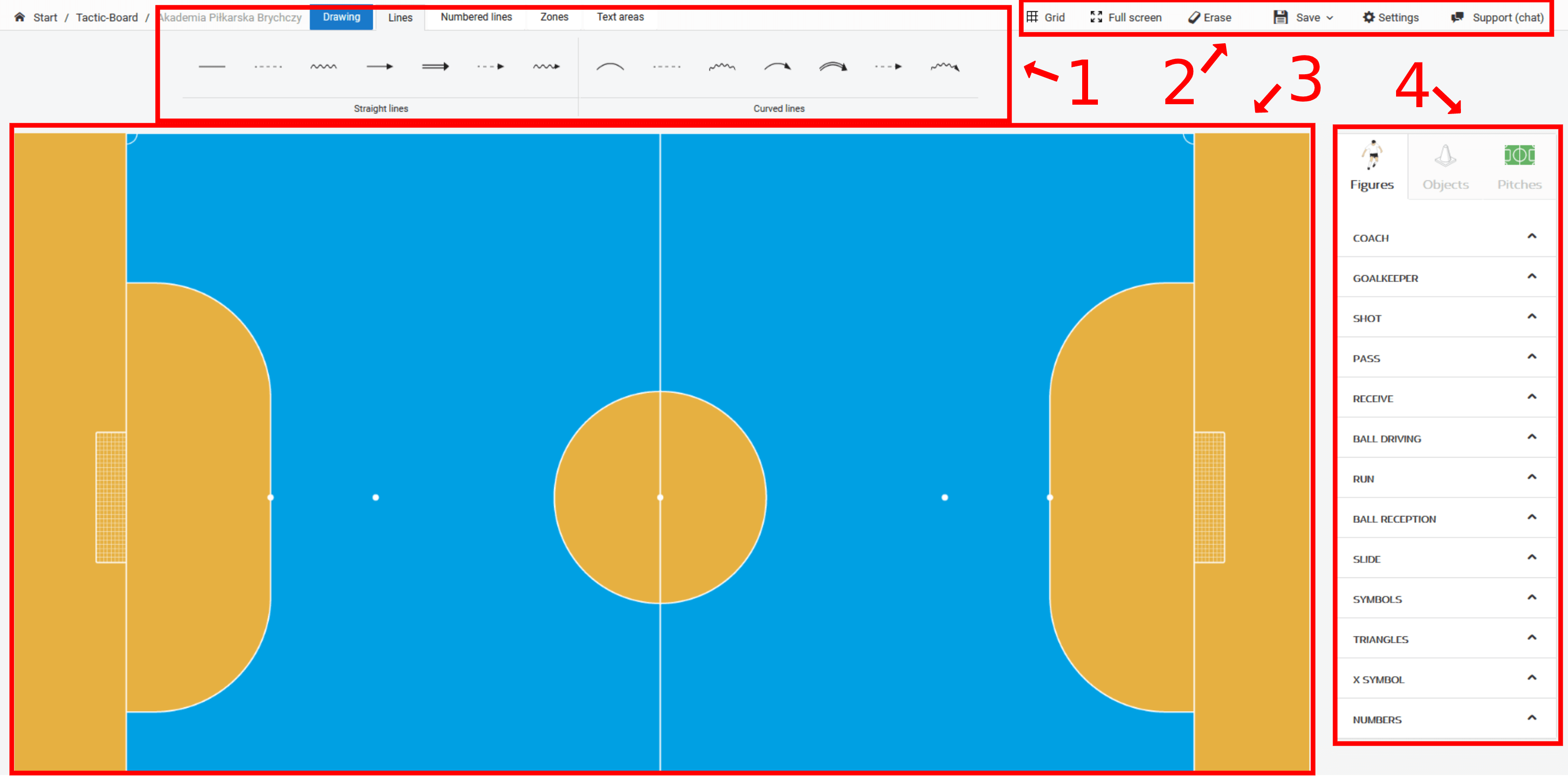
The creator consists of four main elements:
| No | Element | Description |
|---|---|---|
| 1 | Top toolbar | Selection of lines, zones, and text fields |
| 2 | Top function menu | Main project management options |
| 3 | Workspace | Space for creating drawings |
| 4 | Right menu | Objects and fields to add to the workspace |
Creating Drawings
The drawing process uses the top toolbar and the right menu.
The right menu is responsible for adding elements to the field. Available elements include:
- Fields,
- Players,
- Equipment.
Each element is placed on the field by selecting it and choosing the position where it should appear.
The top toolbar is used to select lines, zones, and text fields.
To delete an element, you have two options:
- Right-click on it and select the "Delete" option from the context menu,
- Press the Delete key on your keyboard.

Saving Drawings
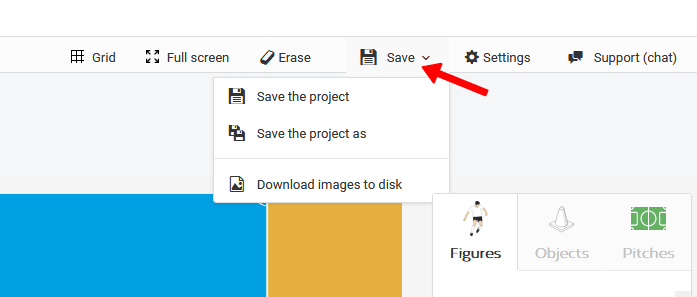
To save a project, click the "Save" button in the top function menu. The system offers three saving options:
- As a project — saves as a new project,
- As a variation — saves as a variant of the currently open project,
- As a PNG file — exports the drawing to your computer's drive.
Adding and Sharing Files
The document management module enables storing and sharing files within a team — available to license holders, from both the web browser and mobile application.
How to Use the Exercise Library
The exercise library system enables organizing, creating, and sharing exercises within a private, club, and public structure — with the ability to build custom directories and add multimedia.