

Team & Access Management
Team List & Access Management
View all club teams, assign coaches and roles, archive, and remove teams from the system.
Team List Overview
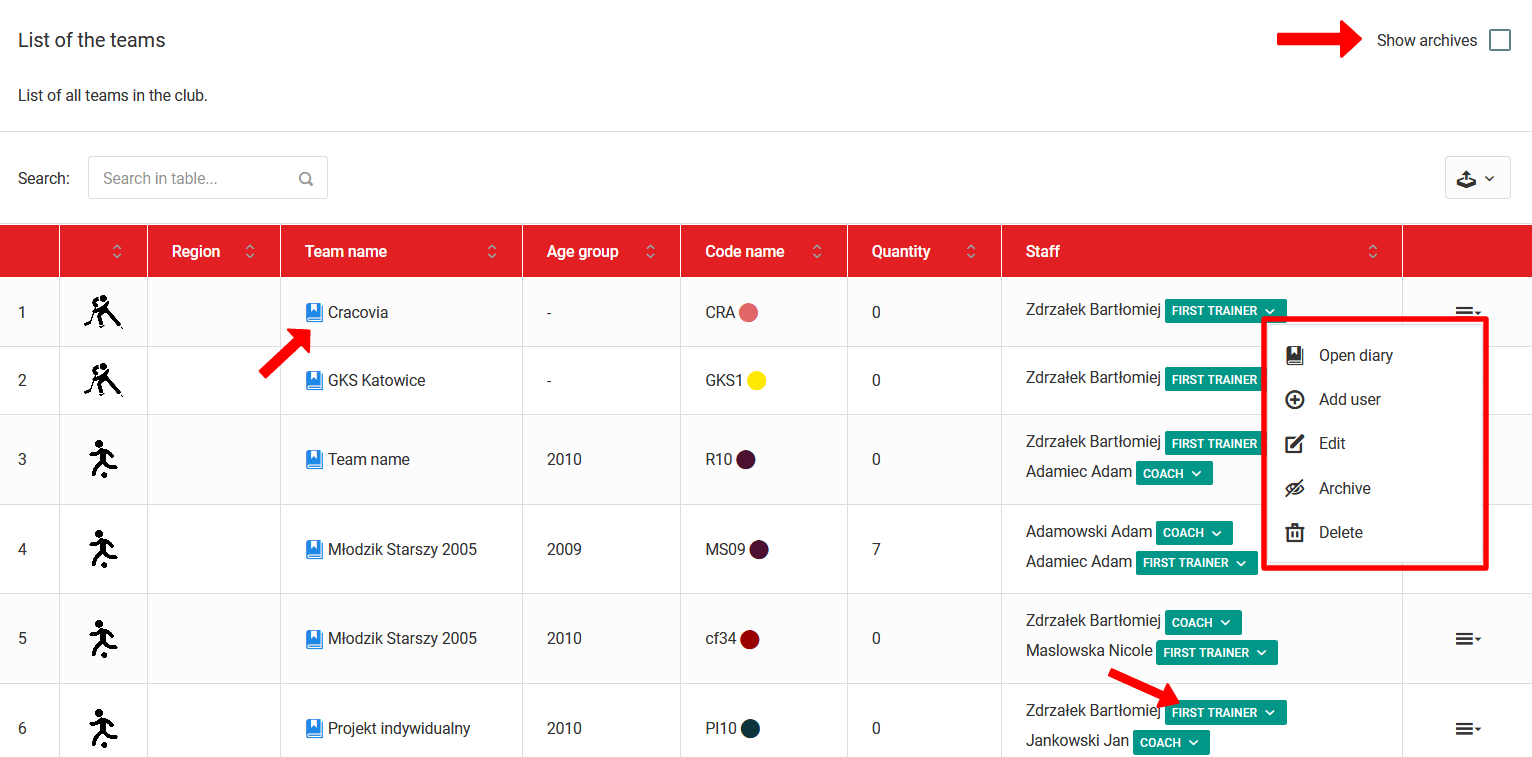
Once you enter the team list, you will see all teams operating under your club. To access the diary of a selected team, click the blue icon next to its name.
Assigning Coaches and Roles
To grant a coach access to a specific diary, select the "Add user" option from the team menu (last column). A window will appear with a list of staff members and available roles.
Available roles:
- Head Coach — full diary access,
- Coach — full diary access,
- remaining roles — read-only.
To change a coach's role in a team, click the green square next to their name and select a new role from the list.
Archiving a Team
If a team has finished its work at the club (e.g. the oldest age group) but you want to retain their historical data, select the "Archive" option from the team menu.
To access a team's archived data, check the "Show archived" box in the top right corner of the team list.
Deleting a Team
To permanently remove a team from the system:
- Unassign all coaches from the team,
- Select the "Delete" option from the team menu.
The topic of adding teams is covered in the earlier chapters of this guide.